.png)





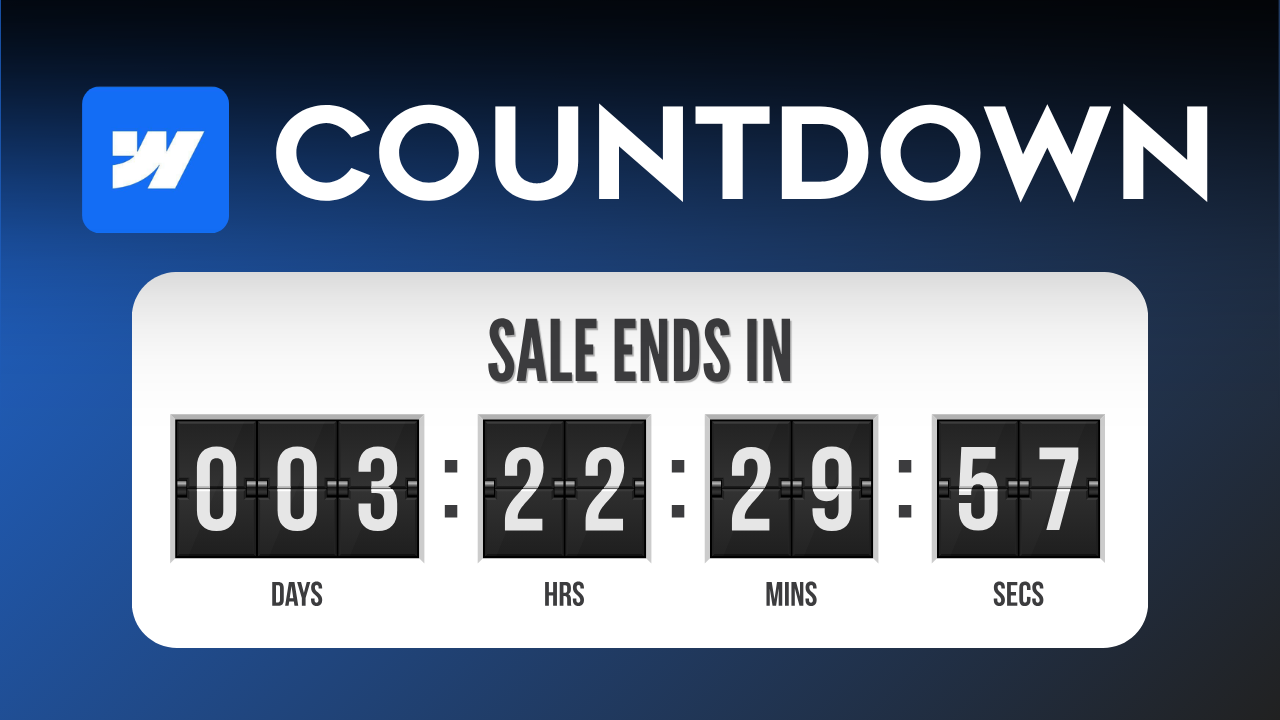
Learn how to build and style a high-converting, custom Webflow countdown timer without expensive third-party plugins. Boost sales and drive urgency today.

Adding urgency to your landing pages, e-commerce stores, or event launches is one of the most effective ways to turn passive visitors into active buyers. Fear of missing out (FOMO) works—provided the presentation looks professional and matches your brand identity.
As a Sydney-based Web Designer and Webflow Expert, I see many businesses rely on clunky, expensive third-party widget plugins to handle simple countdown functionality. These external embeds often slow down your page loading times, hurt your Technical SEO, and break the visual aesthetic of a well-crafted site.
Building a custom countdown timer directly in Webflow gives you 100% design control over typography, spacing, colors, and layout while keeping your site fast, lightweight, and fully responsive across all devices.
Before setting up the layout, here is why replacing bloated third-party widgets with a native Webflow setup gives you a competitive edge:
Here is a quick overview of how to build, style, and power your custom countdown clock directly inside the Webflow Designer:
1.Build the Flexbox Grid Structure: 2 minutes.Drop a container into your section and create a flex wrapper for your timer blocks (Days, Hours, Minutes, Seconds). Use clean, semantic class naming conventions for easy maintenance.
2.Style the Numbers & Typography: 4 minutes.Design the visual containers, set your font sizes, background colors, and border radii, and ensure the layout stays clean across tablet and mobile breakpoints.
3.Inject the Lightweight JavaScript: 3 minutes.Add a tiny custom script via page settings to target your ID tags. Define your target end date and let the script handle real-time math calculations automatically.
4.Test & Publish Live: 2 minutes.Preview the real-time ticking animation in your browser, check mobile touch targets, and publish your high-converting page.
Prefer to follow along visually? Watch the full video walkthrough below to see how to structure the layout, style the containers, and connect the logic in real time:
Watch the Video: How to Create a Countdown Timer in Webflow