
User / Level Icon
Beginner
Gear Time Icon
Webflow
Time Icon
7
 Minutes

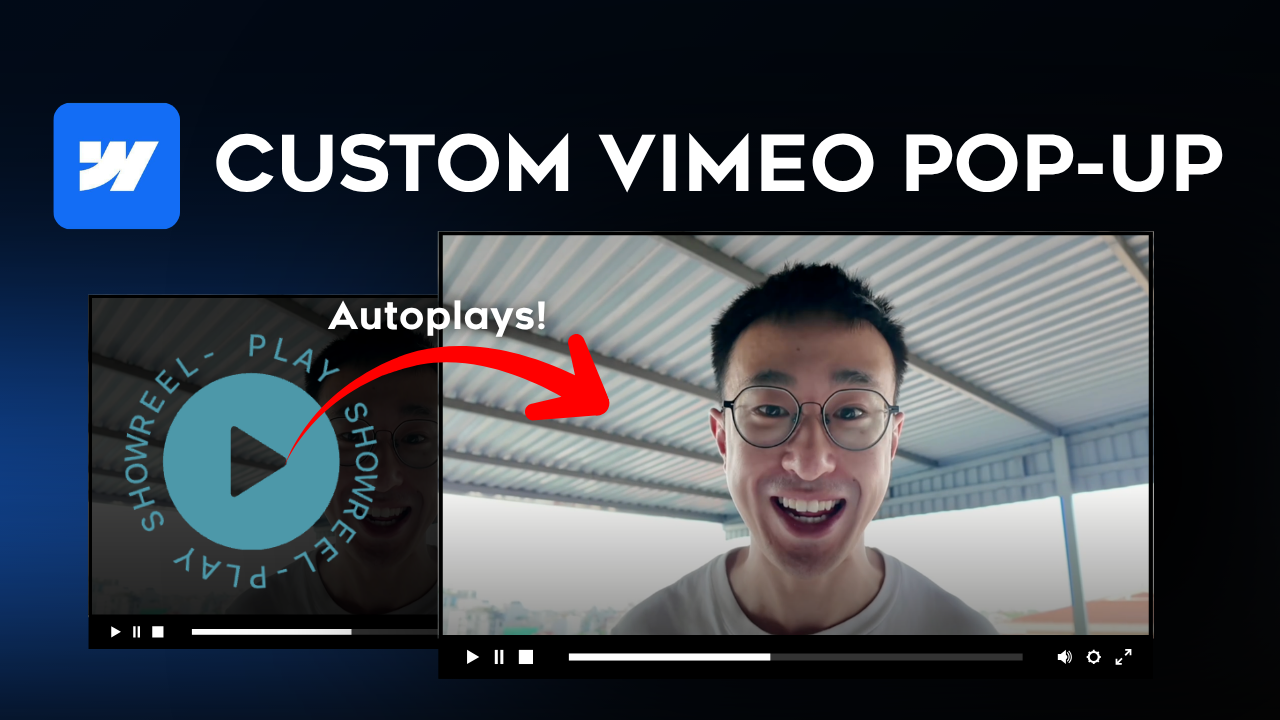
How to Open Vimeo Videos in Webflow Lightboxes Using Custom Attributes

Learn how to trigger responsive Vimeo video lightbox modals in Webflow using Custom Attributes. Step-by-step guide to structure, attribute setup, and playback controls.

Copy Code

Why Use Custom Attributes for Vimeo Lightboxes in Webflow?

Integrating video content into your web builds is essential for driving user engagement, showcasing case studies, and presenting product demos. While standard native video embeds work for basic pages, they restrict custom layout design, limit modal trigger styling, and often create performance drag by loading video iFrames on initial page render.

‍

Using Webflow Custom Attributes to control Vimeo video lightboxes gives you complete visual freedom over your trigger elements (buttons, custom cards, or image thumbnails) while opening videos smoothly inside lightweight popups.

‍

As a Sydney-based Web Designer and Webflow Expert, using custom attributes allows me to connect video URLs dynamically through Webflow CMS collections—giving clients an effortless way to update portfolio showreels without breaking layout structures or custom modals.

Technical Advantages of Attribute-Driven Video Modals

Using custom HTML attributes to launch Vimeo lightboxes delivers distinct structural and performance benefits over static embeds:

  • Complete Styling Freedom: Turn any DOM element—a play button, hover card, or text link—into a fully functional video modal trigger.
  • Dynamic CMS Integration: Bind video attributes directly to Webflow CMS fields so clients can publish new Vimeo links seamlessly.
  • Faster Initial Page Loads: Avoid embedding heavy video iFrames directly on the canvas, keeping initial page weight minimal.
  • Responsive Modal Control: Ensure video popups automatically adjust aspect ratios across desktop, tablet, and mobile viewports.

Step-by-Step: Setting Up Vimeo Video Lightboxes with Custom Attributes

Follow this step-by-step framework to configure your trigger elements, apply attributes, and launch Vimeo video modals in Webflow:

‍

1. Add & Structure Your Trigger Element: Add a Link Block, Button, or Div Block to your canvas. Style your custom trigger element with play icons, background images, or hover states as desired.

‍

2. Configure the Lightbox Component: Place a Webflow Lightbox component onto your page (or within your component structure) and set up the base modal container settings.

‍

3. Apply Custom Attributes to the Trigger: Select your trigger element, open the Element Settings (D) panel, and add your custom attributes (such as target video IDs or custom data attributes) to connect it to the Vimeo URL.

‍

4. Test Modal Playback & Responsive Ratios: Preview the page on staging to confirm that clicking the trigger launches the Vimeo video smoothly and inspect mobile breakpoints for proper modal scaling.

Video Tutorial: Watch the Full Attribute Walkthrough

Prefer a visual step-by-step guide? Watch the complete video walkthrough below to see how to set up, style, and troubleshoot Vimeo attributes in Webflow:

Watch the Video: How to Open Vimeo Videos with Webflow Attributes

‍

Frequently Asked Questions

Can I link Vimeo videos dynamically using Webflow CMS?

Yes. By adding a URL or Plain Text field (containing the Vimeo video ID or link) to your CMS Collection, you can map that CMS field directly into your trigger element's custom attribute settings.

Does opening Vimeo videos via attributes affect mobile performance?

No. Because the video player is only loaded inside the DOM when the user actively triggers the lightbox, your initial mobile page speed and performance metrics remain optimized.

Can I force Vimeo videos to autoplay when the lightbox opens?

Yes. You can append parameters like ?autoplay=1 to your Vimeo URL string or include player configuration attributes so the video starts playing automatically as soon as the modal expands.

What is the difference between custom attributes and standard Webflow links?

Standard links direct users to external URLs or internal page anchors. Custom attributes add HTML data-* properties to elements, allowing native Webflow scripts or third-party libraries (like Finsweet Attributes) to manipulate behavior dynamically without writing custom JavaScript.

Why is my Vimeo video showing a blank screen inside the lightbox?

This usually occurs if the Vimeo video privacy settings are set to private, or if domain embedding restrictions are enabled on your Vimeo account settings. Ensure your video permissions allow embedding on your Webflow domain.
Have Any Further Questions?
I'm Always Down To Help.
Contact Me