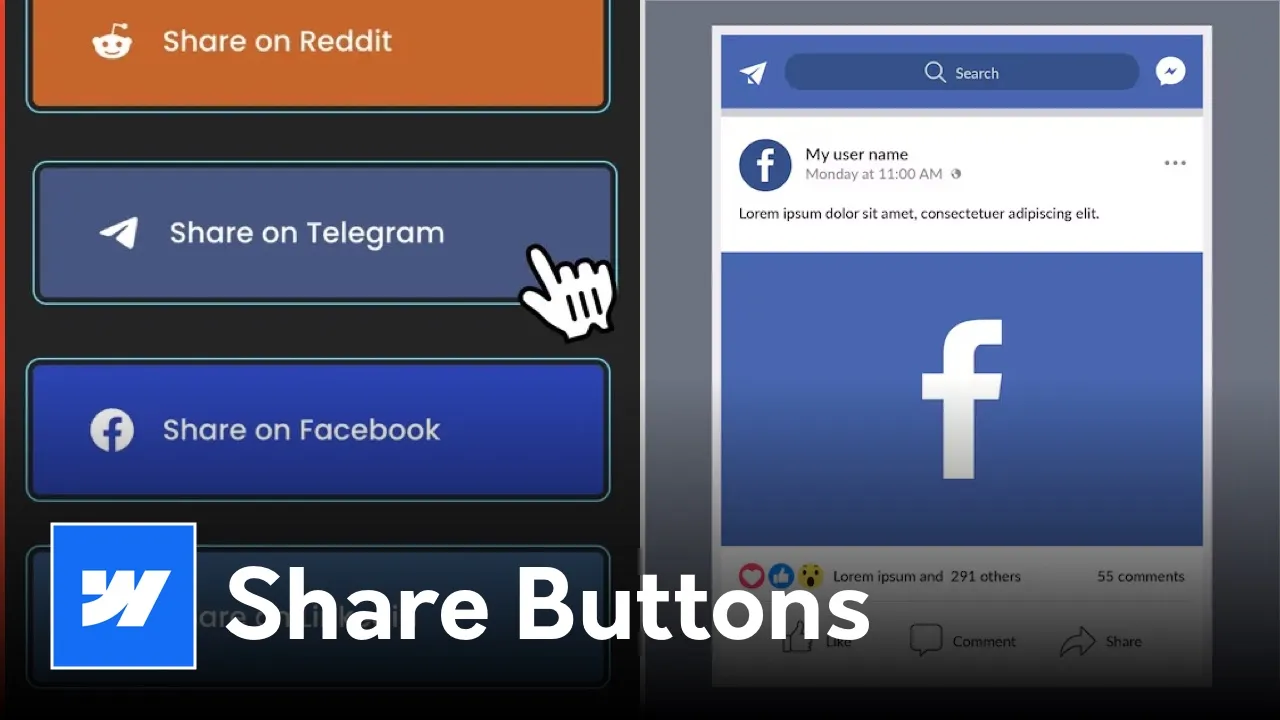






Learn how to add custom social share buttons to your Webflow CMS pages using Finsweet Attributes. Step-by-step guide with no-code social sharing for X, Facebook, and LinkedIn.

<script defer src="https://cdn.jsdelivr.net/npm/@finsweet/attributes-socialshare@1/socialshare.js"></script>
Adding social share buttons to your Webflow project is one of the easiest ways to increase engagement and drive traffic to your CMS content. While there are many third-party widgets available, they often come with bulky code that slows down your site.
By using Finsweet Attributes, you can create fully custom share buttons that match your brand perfectly—without writing a single line of custom JavaScript.
The first step is to connect your Webflow project to the Finsweet Social Share library.
HTML
<script defer src="https://cdn.jsdelivr.net/npm/@finsweet/attributes-socialshare@1/socialshare.js"></script>
Inside the Webflow Designer, go to your blog post template page. You can design your buttons using:
Place these inside a wrapper near your blog content. This is the beauty of this solution: you have 100% control over the CSS and layout.
Now, you need to tell the script which button corresponds to which social platform. Select your button element and open the Settings Panel (D) to add Custom Attributes.
For Every Platform:
fs-socialshare-element[platform-name] (e.g., twitter, facebook, linkedin, pinterest, or whatsapp)Optional: Define the URL to ShareBy default, the script shares the URL of the current page. However, if you want to be specific (useful for sharing a different CMS field), add an element (like a hidden text block) with:
fs-socialshare-elementurlSome platforms allow you to pre-populate text. For example, on X (formerly Twitter), you can add a text element with the attribute fs-socialshare-element="content" to define the default tweet text.
Attributes only work on the live site. Publish your project to your .webflow.io staging domain and click your buttons to ensure they trigger the correct social popups with the right metadata.