



User / Level Icon
Beginner
Gear Time Icon
Webflow
Time Icon
2
 Minutes

How to Share a Webflow Sandbox Link (Read-Only Guide)

Need to share your Webflow project for support or collaboration? Learn how to generate a secure Read-Only Sandbox link in seconds. Step-by-step guide by Derek Siu.
Copy Code

What is a Webflow Sandbox Link?

A Webflow Sandbox link, commonly known as a Read-Only link, is a unique URL that allows someone else to view your project inside the Webflow Designer without having the ability to save changes, modify your CMS, or publish your site.

When you are working with a Webflow developer or seeking help on the forums, providing this link is the most efficient way to troubleshoot layout bugs or interaction issues.

How to Share Your Webflow Sandbox Link (Step-by-Step)

Generating your link takes less than 30 seconds. Follow these steps:


1. Open the Share Menu

In the top-right corner of the Webflow Designer, click the Share button (located next to the blue "Publish" button).
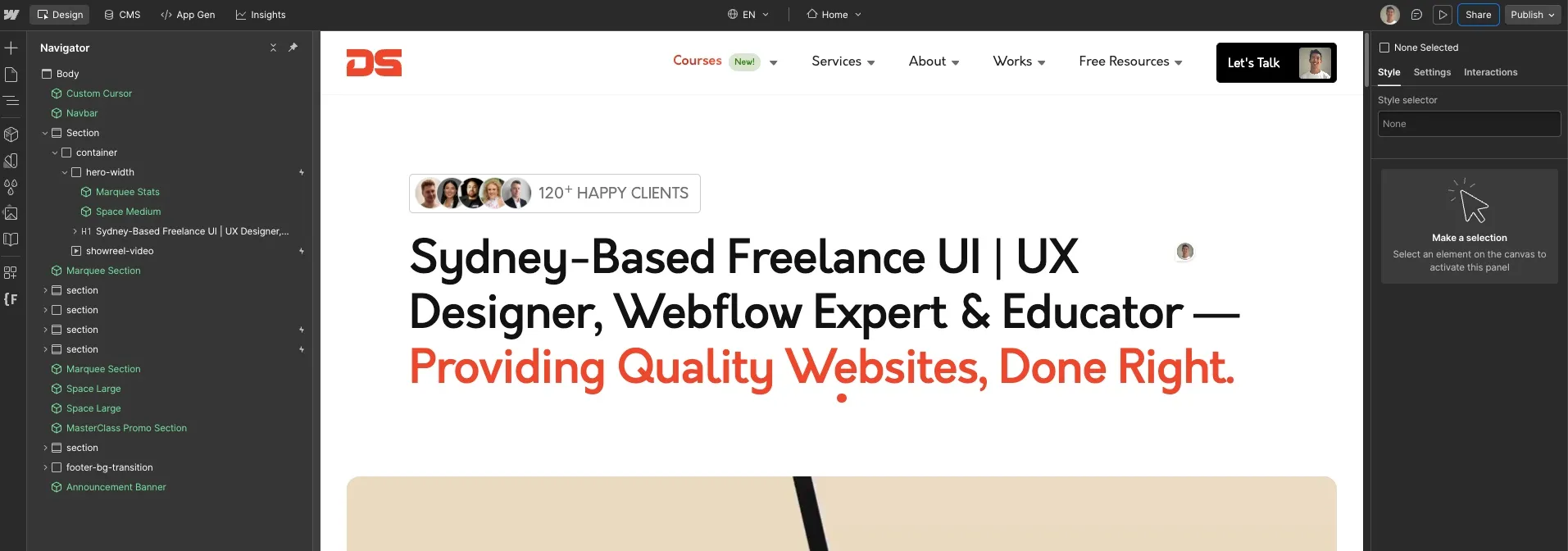
Share button is located on the top right next to "Publish"


2. Enable the Read-Only Toggle

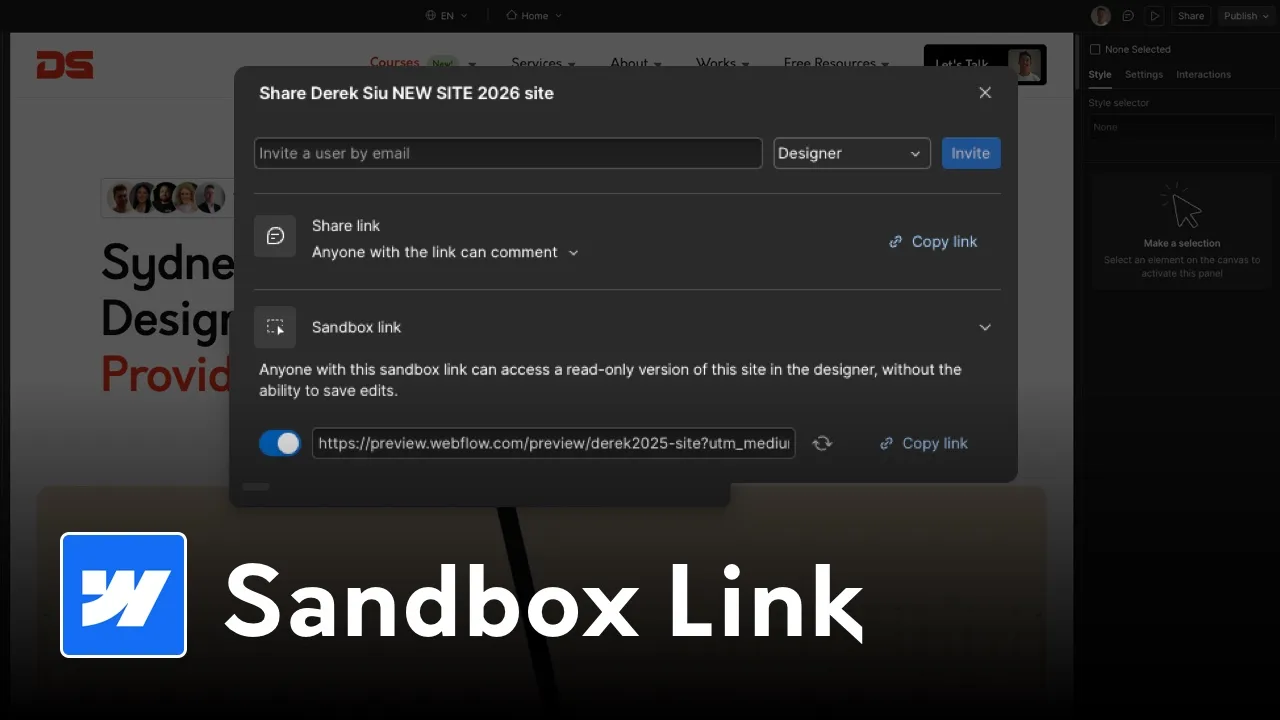
A modal will appear with several tabs. Select the Sandbox Link button at the very bottom
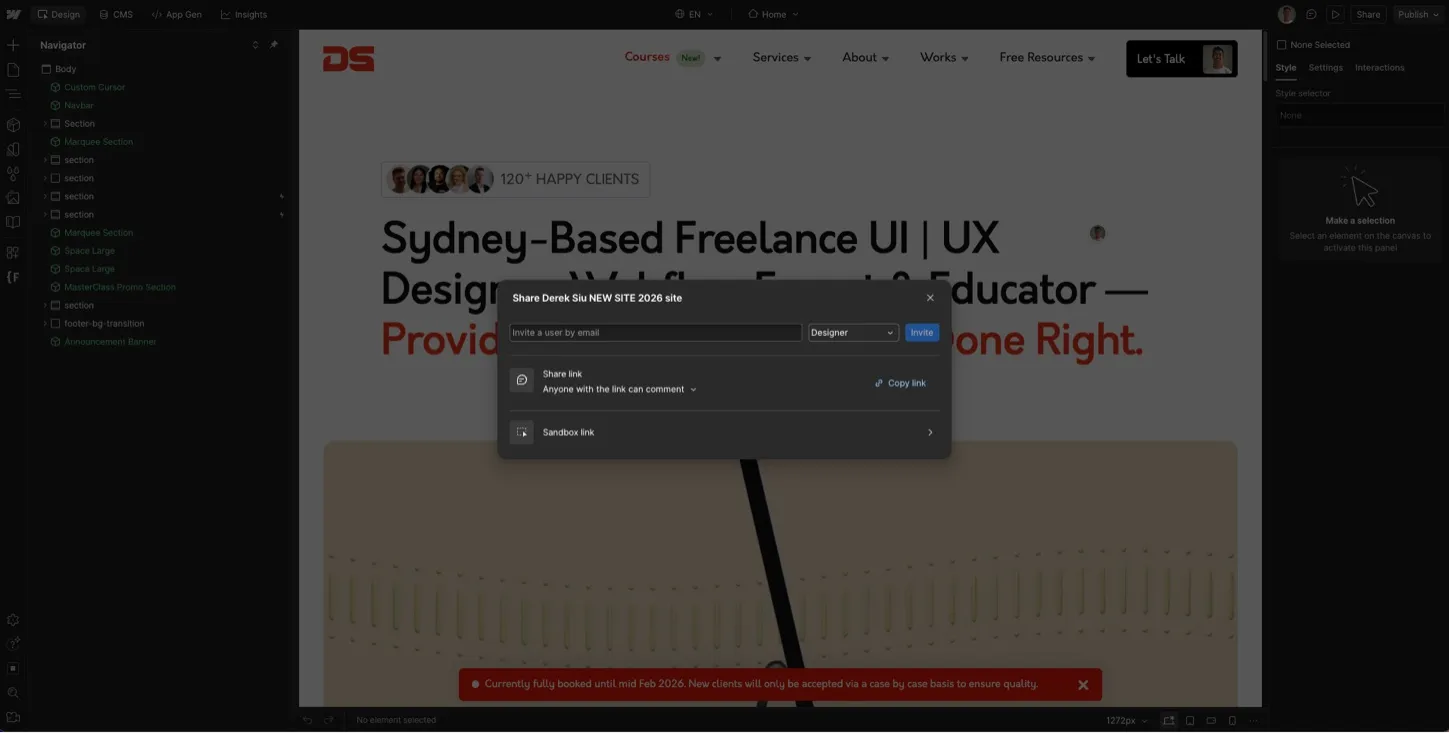
Where it says "Sandbox Link" click on that

3. Copy the URL

Webflow will generate a link that starts with https://preview.webflow.com/. Click the copy icon to save it to your clipboard. You can now send this link to anyone who needs to inspect your project.
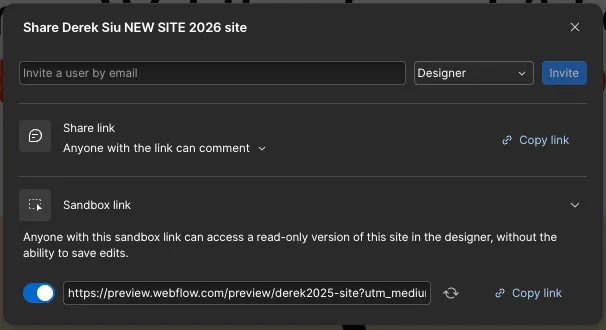
Copy the link that would be the Sandbox link

Why You Should Use a Sandbox Link Instead of a Published URL

A common mistake is sharing the published .webflow.io staging link. While that link is great for seeing the final result, it doesn't help with debugging.

  • The Published Link shows the output (HTML/CSS).
  • The Sandbox Link shows the source (The Designer).

By sharing the Sandbox link, a developer can see your Style Panel, Navigator hierarchy, and Interactions, allowing them to identify the root cause of an issue immediately.

Privacy and Security: Is it Safe?

Sharing your Sandbox link is safe because the viewer is in a "locked" environment. They cannot:

  • Delete your assets.
  • Edit your text or images.
  • Access your Billing or Project Settings.
  • Publish changes to your live domain.
Note: Anyone with the link can see your CMS data and site structure. If you need to revoke access, simply go back to the Share menu and toggle the link to OFF. The previous link will stop working instantly.

Frequently Asked Questions

Can someone edit my site using a Sandbox link?

No. The Webflow Sandbox link is strictly Read-Only. While visitors can click through your Navigator and Style Panel to see how the site is built, any changes they attempt to make will not be saved. Your live site and Designer remain perfectly safe.

Does the Sandbox link update automatically when I make changes?

Yes. Unlike the published staging domain (.webflow.io), which requires you to hit "Publish" to see updates, the Sandbox link reflects the current state of your Designer. If you move an element, the viewer simply needs to refresh their browser to see the change.

How do I disable or revoke access to my Read-Only link?

To stop sharing your project, open the Share menu in the Designer and toggle the Sandbox link to OFF. The unique URL will be deactivated immediately, and anyone trying to access it will see a 404 error.

Do I need a paid Webflow plan to share a Sandbox link?

No. You can generate a Read-Only link even on the free Starter plan. This makes it the best way for beginners to get technical support from the Webflow community without needing to upgrade their account.

Is my CMS data visible through a Read-Only link?

Yes. Anyone with the link can view the structure and content of your CMS Collections. If you have sensitive information or "draft" content you aren't ready to show, be aware that it will be visible in the Designer view.
Have Any Further Questions?
I'm Always Down To Help.
Contact Me