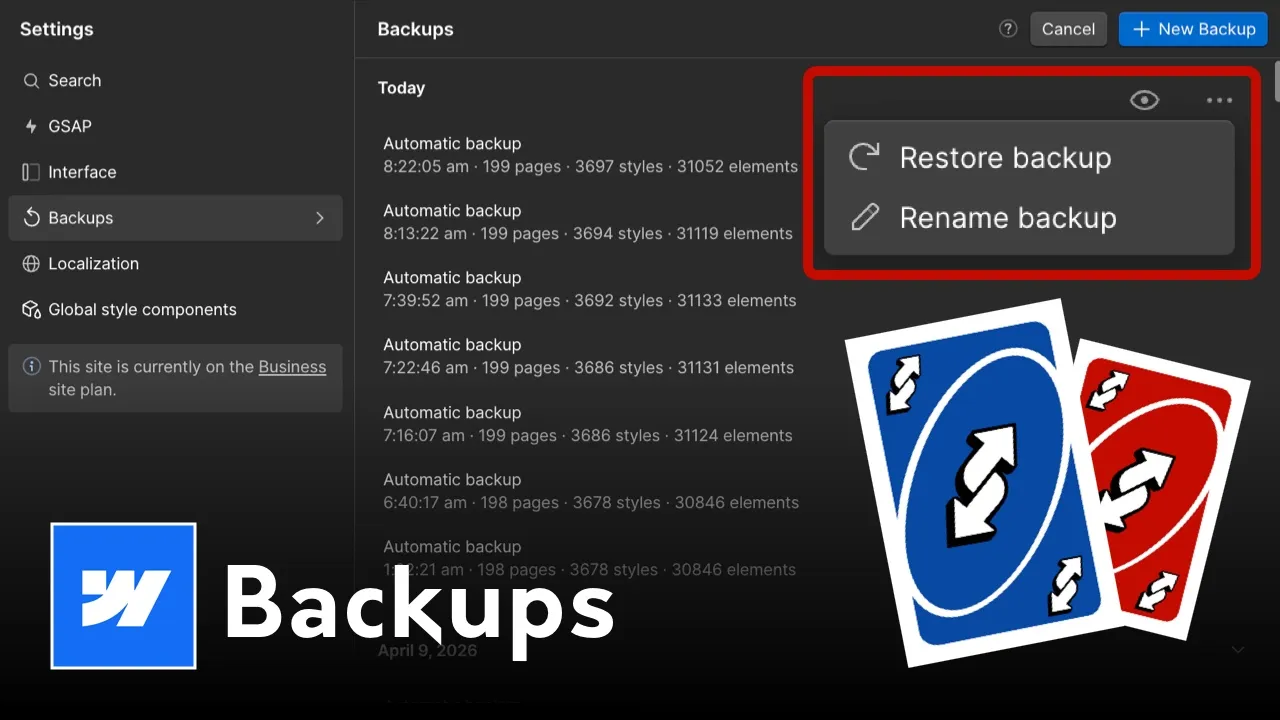






Master Webflow version control with this guide to manual restore points. Learn the CMD+SHIFT+S shortcut and how to safely restore your site without losing CMS data.

The "Heart-Stopping" Moment
Every Webflow developer has been there. You’re deep in a flow state, making layout changes or tweaking complex CMS structures, and suddenly—you’ve broken it. Without a solid backup strategy, you can lose hours of progress in seconds.
Automatic backups are a decent safety net, but they aren't a strategy. If you want to build professional sites, you need to master manual Webflow version control.
Webflow’s automatic backups occur at set intervals or when you close the Designer. However, if you make 50 changes in 20 minutes, an auto-save might only capture a fraction of that work. Whether you are building a small landing page or a massive corporate site, that loss of data is a massive waste of time.
To stay protected, you need to be intentional with Manual Restore Points.
Don't waste time digging through the settings panel. Professionals use the Designer Shortcut to create restore points instantly.
CMD + SHIFT + SCTRL + SHIFT + SThis shortcut opens a prompt to Name your backup without leaving the canvas. Use this before every major interaction change, custom code injection, or CMS import. It’s the fastest way to ensure your workflow is bulletproof.
Restoring isn't just about hitting a button. To protect your site integrity:
Mastering the technical side of Webflow is about having the systems to handle any project size. When you know your work is protected, you can take bigger creative risks and build faster.
Watch the breakdown : Watch my concise video on Webflow Backups here.
Master the Fundamentals:If you want to move from "building" to "operating," check out my fundamentals course where I share the exact systems I use for my projects.
👉 Freelance & Business Fundamentals Course
<script type="application/ld+json">
{
"@context": "https://schema.org",
"@type": "HowTo",
"name": "How to Manage Webflow Backups and Version Control",
"description": "Learn how to use manual restore points and keyboard shortcuts to protect your Webflow projects from data loss.",
"image": "https://cdn.prod.website-files.com/681ac8bce928242887dd30f5/69d9b9f297e5fa8cc6a70bc7_Webflow%20Backups.jpg",
"step": [
{
"@type": "HowToStep",
"name": "Open Webflow Designer",
"text": "Launch the project you wish to backup in the Webflow Designer."
},
{
"@type": "HowToStep",
"name": "Use the Backup Shortcut",
"text": "Press CMD+SHIFT+S (Mac) or CTRL+SHIFT+S (Windows) to trigger a manual backup."
},
{
"@type": "HowToStep",
"name": "Name the Restore Point",
"text": "Enter a descriptive name for your backup so you can identify it later."
},
{
"@type": "HowToStep",
"name": "Verify in Settings",
"text": "Check the Backups tab in Project Settings to ensure the restore point is saved."
}
],
"author": {
"@type": "Person",
"name": "Derek Siu",
"url": "https://dereksiu.com.au"
}
}
</script>