


User / Level Icon
Intermediate
Gear Time Icon
Webflow
Time Icon
3
 Minutes

How to Style and Position Webflow Select Dropdown Arrows (Native + CSS)

Learn how to hide the default browser arrow in Webflow select fields and replace it with a custom, perfectly positioned icon using CSS.

<style>
 /* Targets the internal Webflow class for select fields */
 .w-select {
   appearance: none;
   -webkit-appearance: none;
   -moz-appearance: none;
 }
</style>

Copy Code
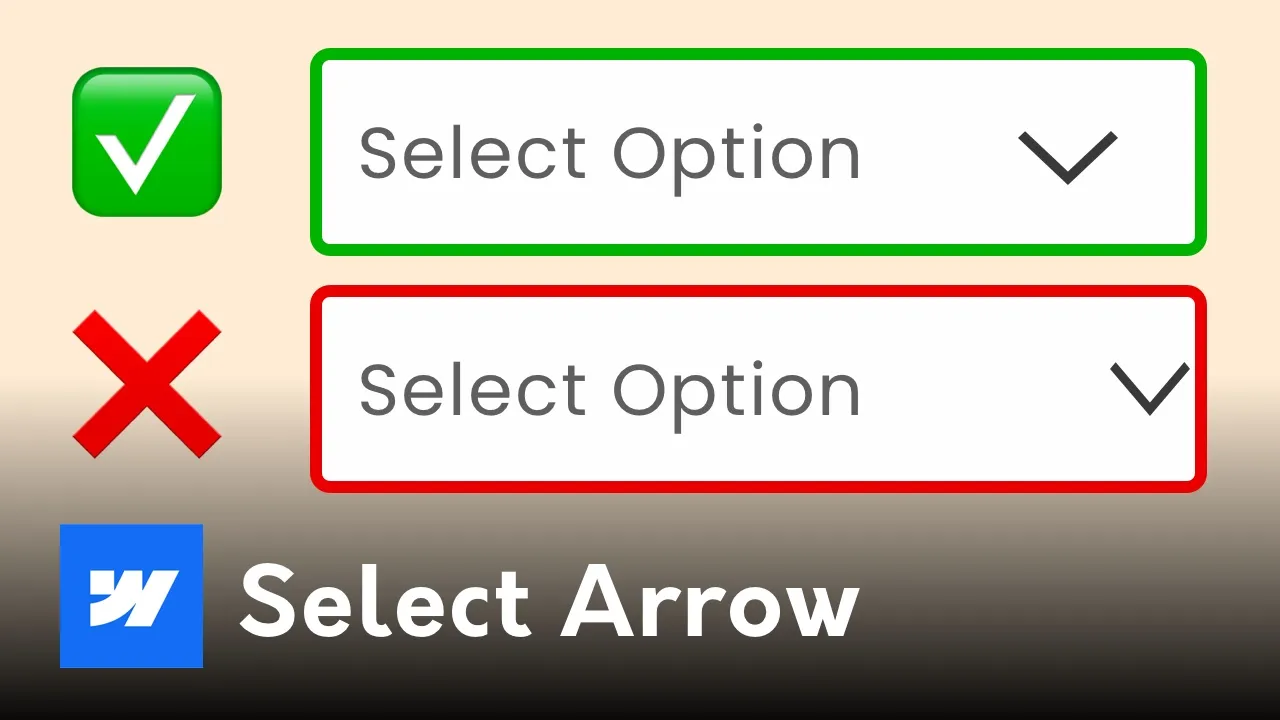
If you’ve ever used the native Webflow Select Component, you’ve probably noticed a common design flaw: the default arrow is often stuck too close to the edge of the field, and Webflow doesn't give you a native "style" panel to move it.

In this quick tutorial, I’ll show you how to remove that default arrow and replace it with a custom, perfectly positioned image using a tiny bit of CSS.

The Problem: The "Stuck" Default Arrow

By default, the arrow in a Webflow dropdown field is a browser-rendered element. This means you can’t easily change its color, size, or padding. Often, it ends up touching the right edge of your div block, making your forms look unpolished.

The Solution: A 2-Step Workflow

Step 1: Hide the Default Arrow with CSS

To replace the arrow, we first need to get rid of the browser's default one. We do this by targeting a specific Webflow class: .w-select.

  1. Drop an Embed Component onto your page.
  2. Paste the following code:

HTML

<style>
 /* Targets the internal Webflow class for select fields */
 .w-select {
   appearance: none;
   -webkit-appearance: none;
   -moz-appearance: none;
 }
</style>

This removes the "system" arrow across all your select fields while keeping the functionality intact.

Step 2: Add Your Custom Arrow as a Background Image

Now that the default arrow is gone, we can add our own and position it exactly where we want it.

  1. Select your Select Field and give it a class (e.g., "Custom Select").
  2. In the Style Panel, scroll down to Effects > Backgrounds.
  3. Add an image and upload your custom arrow icon (SVG is best).
  4. Set the positioning to Right and Center.
  5. The Secret Sauce: Use Percentage-based positioning (e.g., 95% from the left) to give the arrow some breathing room from the edge. Using percentages ensures the arrow stays responsive across tablet and mobile.

Pro Tip: Why Percentages Matter

As I discuss in my Webflow Image Tutorial, using percentages for background positioning is a professional standard. It prevents the icon from "jumping" or overlapping text when the field shrinks on smaller screens.

Level Up Your Webflow Skills

If you found this quick fix helpful, you'll love my full-scale systems for building high-end client sites.

  • Webflow Masterclass: Learn my full development workflow.
  • Hire a Pro: Need a custom Webflow build? As a verified Fiverr Pro, I’ve launched over 200+ sites for global clients. Let's chat.

Derek Siu | Sydney Webflow Designer & Developer

Frequently Asked Questions

Why can’t I style the arrow in my Webflow select field?

By default, the arrow in a Webflow select component is controlled by the user's browser (Chrome, Safari, etc.), not Webflow’s styling panel. To change its appearance, you must use custom CSS to set appearance: none; which hides the system default and allows you to add a custom background image instead.

How do I remove the default arrow from a Webflow dropdown?

To remove the default arrow, add an HTML Embed to your page and use the CSS property appearance: none; on the .w-select class. This works across all major browsers and provides a "blank slate" for you to add your own custom arrow icon as a background image.

Is using a background image for select arrows responsive?

Yes, using a background image is highly responsive if you use percentage-based positioning. By setting the background position to something like 95% center, the arrow will maintain its relative distance from the right edge of the field regardless of how wide the form is on tablet or mobile devices.

Will custom CSS select styling break my Webflow form?

No, hiding the default arrow via CSS does not impact the functionality of the form. The dropdown will still open and capture data correctly. The CSS only affects the visual "chrome" of the element, giving you full control over the UI without touching the backend logic.

Can I use an SVG for my custom Webflow dropdown arrow?

Absolutely. In fact, using an SVG is the professional standard for Webflow developers. SVGs are lightweight and stay perfectly sharp on high-resolution Retina displays, ensuring your form looks crisp even when scaled up or down.
Have Any Further Questions?
I'm Always Down To Help.
Contact Me